Diese Anleitung zeigt dir sauber und exakt, wie du Heimdall und Homarr über die GUI (ohne Terminal) installierst.
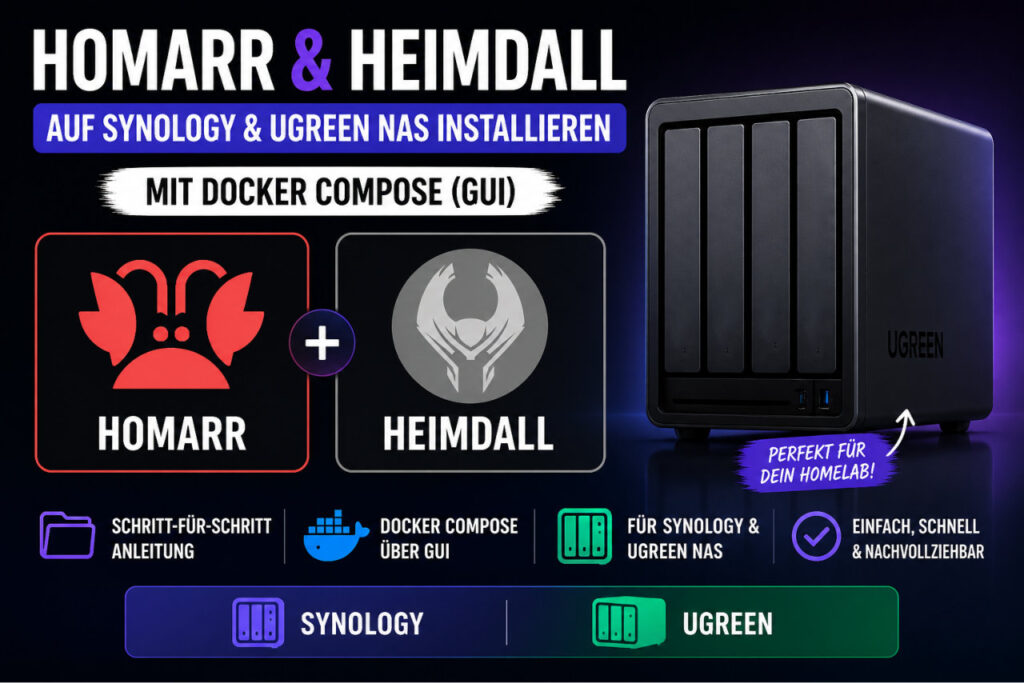
Struktur:
- Synology – Heimdall
- Synology – Homarr
- UGREEN – Heimdall
- UGREEN – Homarr
Alles basiert auf:
/volume1/docker/
1. Synology – Heimdall installieren
Schritt 1: Ordner erstellen (File Station)
- Öffne File Station
- Gehe zu:
volume1 → docker - Erstelle neuen Ordner:
heimdall - In diesem Ordner einen weiteren Ordner: config
Schritt 2: Container Manager öffnen
- Öffne Container Manager
- Links auf Projekte
- Klick auf Erstellen
Schritt 3: Projekt konfigurieren
- Projektname:
heimdall - Pfad:
/volume1/docker/heimdall - Docker Compose einfügen:
services:
  heimdall:
    image: lscr.io/linuxserver/heimdall:latest
    container_name: heimdall
    environment:
      - PUID=1026
      - PGID=100
      - TZ=Europe/Berlin
    volumes:
      - /volume1/docker/heimdall/config:/config
    ports:
      - 8080:80
    restart: unless-stopped
Schritt 4: Deployen
- Klick auf Weiter
- Dann Fertigstellen / Bereitstellen
Wenn alles passt:
Exit Code 0
Schritt 5: Zugriff
http://NAS-IP:8080
2. Synology – Homarr installieren
Schritt 1: Ordner erstellen
- Öffne File Station
- Gehe zu:
volume1 → docker - Erstelle neuen Ordner:
homarr - In diesem Ordner einen weiteren Ordner: appdata
Schritt 2: Projekt erstellen
- Container Manager → Projekte
- Erstellen
Schritt 3: Einstellungen
- Name:
homarr - Pfad:
/volume1/docker/homarr - Docker Compose:
services:
  homarr:
    image: ghcr.io/homarr-labs/homarr:latest
    container_name: homarr
    environment:
      - TZ=Europe/Berlin
      - SECRET_ENCRYPTION_KEY=0123456789abcdef0123456789abcdef0123456789abcdef0123456789abcdef # mit eigenem Key ersetzen
    volumes:
      - /volume1/docker/homarr/appdata:/appdata
      - /var/run/docker.sock:/var/run/docker.sock
    ports:
      - 7575:7575
    restart: unless-stopped
Schritt 4: Deployen
→ Starten
Erwartung:
Exit Code 0
Zugriff
http://NAS-IP:7575
3. UGREEN NAS – Heimdall installieren
Schritt 1: Ordner erstellen
- Öffne Dateimanager
- Gehe zu:
volume1 → docker - Erstelle neuen Ordner:
heimdall - In diesem Ordner einen weiteren Ordner: config
Schritt 2: Docker öffnen
- Öffne Docker App
- Links: Projekte / Compose
- Klick: Neues Projekt
Schritt 3: Projekt Setup
- Name:
heimdall - Pfad wählen:
/volume1/docker/heimdall - Compose einfügen:
services:
  heimdall:
    image: lscr.io/linuxserver/heimdall:latest
    container_name: heimdall
    environment:
      - PUID=1000
      - PGID=10
      - TZ=Europe/Berlin
    volumes:
      - /volume1/docker/heimdall/config:/config
    ports:
      - 8080:80
    restart: unless-stopped
Schritt 4: Deploy
→ Starten
Ergebnis:
Exit Code 0
Zugriff
http://NAS-IP:8080
4. UGREEN NAS – Homarr installieren
Schritt 1: Ordner erstellen
- Öffne File Station
- Gehe zu:
volume1 → docker - Erstelle neuen Ordner:
homarr - In diesem Ordner einen weiteren Ordner: appdata
Schritt 2: Projekt erstellen
- Docker App öffnen
- Compose / Projekte
- Neues Projekt
Schritt 3: Setup
- Name:
homarr - Pfad:
/volume1/docker/homarr - Compose:
services:
  homarr:
    image: ghcr.io/homarr-labs/homarr:latest
    container_name: homarr
    environment:
      - TZ=Europe/Berlin
      - SECRET_ENCRYPTION_KEY=0123456789abcdef0123456789abcdef0123456789abcdef0123456789abcdef # mit eigenem Key ersetzen
    volumes:
      - /volume1/docker/homarr/appdata:/appdata
      - /var/run/docker.sock:/var/run/docker.sock
    ports:
      - 7575:7575
    restart: unless-stopped
Schritt 4: Deploy
→ Starten
Wenn erfolgreich:
Exit Code 0
Zugriff
http://NAS-IP:7575
Wichtige Hinweise
Ports
Wenn belegt:
- Heimdall:
8080 → ändern auf z.B. 8081 - Homarr:
7575 → ändern auf z.B. 7576
SECRET KEY (Homarr)
Unbedingt ersetzen, z. B.:
64 Zeichen langen HEX-Key -> 0123456789abcdef0123456789abcdef0123456789abcdef0123456789abcdef
Fazit
- Heimdall: schnell, simpel, läuft sofort
- Homarr: moderner, mehr Features
Beide lassen sich komplett über GUI installieren – ohne Terminal.
Perfekt für Synology & UGREEN NAS.
🛠️ Meine Hardware-Empfehlungen
Synology DS923+Zu Amazon
UGREEN DXP2800Zu Amazon
* Affiliate-Links (Werbung) – für dich ohne Aufpreis. Mein komplettes Setup →
Offizielle Projektseite: Homarr ↗
Verwandte Anleitungen
(Visited 343 times, 1 visits today)